XBOX
Microsoft CorporationEntertainment
4.6139.68K Reviews
- Version
- 2611.1.5
- Installs
- 100.00M
- Age Rating
- Teen
Screenshots
Our Review of XBOX
 Analysis by Appyee
I think the key question with the XBOX app is what you want your phone to do for your gaming life. If you mainly need a place to keep up with friends, messages and activity around your console, it has a clear purpose. If you expect a phone app to replace a console, a dedicated game-streaming service or every other gaming community you use, I’d set expectations more carefully. It works best as a companion: useful between sessions and sometimes handy during one, but not a substitute for every part of the Xbox experience.
Decide what you want from a gaming companion
Before installing, I’d separate three jobs that people often lump together: staying in touch with players, managing console-related activity, and playing games on a phone. The app is most compelling when the first two matter to you. The third depends on your setup and connection, so I wouldn’t choose it solely because you want reliable mobile gaming anywhere.
That distinction matters if you already use group chats or a general gaming community app. Those tools may be better for conversations that span several platforms, while this one makes more sense when your friends and gaming routine are centered on Xbox. I find it more useful as a focused companion than as a universal social hub.
For context, this is a free entertainment app from Microsoft Corporation, rated Teen. It has a 4.5 average from around 2.3 million ratings, and has passed 100 million installs. Those figures suggest it has become a familiar choice for many players, but popularity alone won’t make it a fit if your gaming friends are elsewhere.
Where it earns a place on my phone
The practical benefit is continuity. I can check what friends are doing, catch community activity and handle gaming-related conversations without sitting in front of the console. That is especially useful when I’m away from home or when a quick message is all I need. Instead of opening a broad social app and hunting for the right group, I can keep the gaming side of my social life in one place.
A realistic example: I’m out for the evening, a friend asks whether I’m joining later, and I can answer from my phone rather than waiting until I’m back at the TV. I can also use a quiet moment to see what’s happening in my gaming circle, then decide whether to play when I get home. That small convenience is the app’s strongest everyday case; it removes a few unnecessary steps without asking me to turn every spare minute into a gaming session.
There is a less obvious benefit to treating the app as a planning tool rather than a place to browse endlessly. Checking friends’ activity before I sit down can help me coordinate a session and avoid messaging people who are not around. I’d keep notifications selective, too: alerts for the people or updates I care about are more useful than letting every community event compete for attention.
Streaming is useful, but it has conditions
The app’s descriptions of streaming and cloud play can sound similar, but they solve different problems. Streaming from a console depends on that console and your home setup; cloud gaming is a separate way to play without installing a title on the phone. In either case, the experience is only as dependable as the network path between the game and your screen. I would test it at home first, where I can troubleshoot, rather than count on it for a commute or a weak public connection.
For a short session in another room, console streaming can be a clever workaround when the main screen is occupied. Touch controls and a phone display may still feel less comfortable than a controller and television, especially for games that demand precise inputs. I’d consider a controller and a stable connection before treating a phone as my regular screen. For quick access or casual play, the trade-off may be worthwhile; for a long, demanding session, I’d stay with the console setup.
Cloud play is appealing when I want to try a game without first downloading it, but “no download” does not mean “no requirements.” A steady internet connection is central, and a data connection can be less predictable than home Wi-Fi. I would avoid assuming that every game or every network will feel equally good. The app can make access convenient, but it cannot remove the latency and reliability limits of streaming.
First Impressions and User Interface
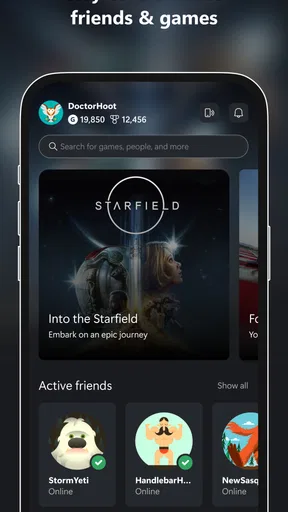
When you first open the app, you’re greeted with a sleek and intuitive interface. The home screen is clean, and navigation is a breeze. Everything is organized efficiently, from your game library to community updates. I love how the app doesn’t overwhelm you with too much information right off the bat. Instead, it invites you to explore at your own pace.
The app features a dark mode option, which is a blessing for those late-night gaming sessions. The transition between different sections is smooth, and the app rarely lags, which is always a plus in my book. You'll find all your favorite games and friends right at your fingertips.
Features You’ll Love
One of the standout features is the ability to stream your games directly from your console to your mobile device. This means you can continue your gaming session even if you're away from your TV. It’s perfect for those moments when you don’t want to stop playing but need to move to another room or even head outdoors.
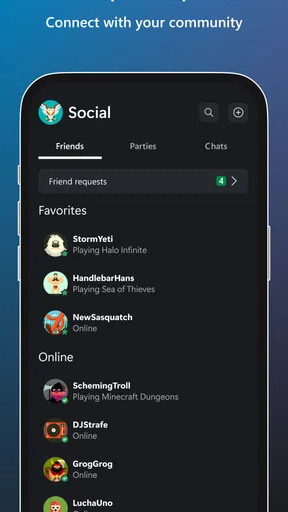
Another cool feature is the social aspect. You can easily chat with friends, join groups, and even create your own community. The app keeps you connected with your gaming buddies even when you’re not actively playing. Plus, the activity feed is a fantastic way to keep up with what your friends are up to and discover new games they’re playing.
The Gaming Experience
Now, let’s talk about the actual gaming experience. The app supports a wide range of games, and the cloud gaming feature is a game-changer. You don’t need to download anything; just pick a game and start playing. The gameplay is smooth, and the graphics are surprisingly crisp for a mobile platform.
One thing to note is that a strong internet connection is key to enjoying the full potential of the app. If you’re on spotty Wi-Fi, you might face some hiccups, but that’s true for most streaming services. When everything’s working, though, it feels like magic.
Customization and Personal Touch
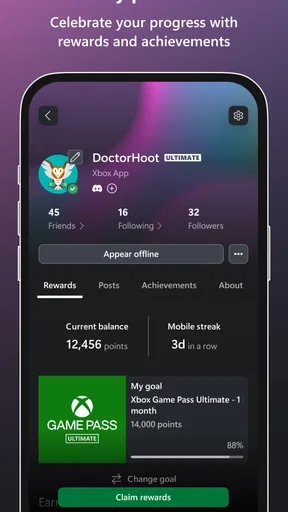
I’m all about customizing my gaming experience, and the app allows you to do just that. From personalizing your profile to setting up your own dashboard, there’s plenty of room to make the app truly yours. You can even customize notifications, so you never miss out on important updates or friend requests.
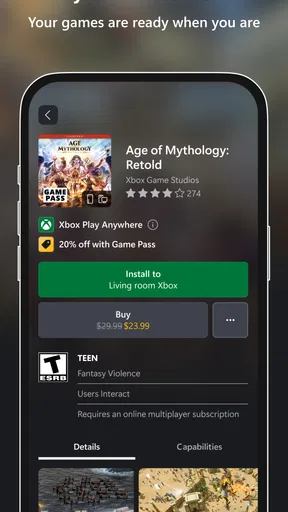
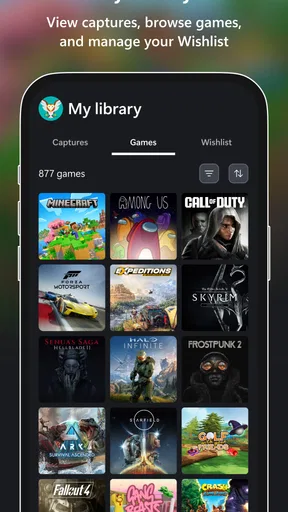
The app also lets you manage your game library with ease. You can organize your games, download updates, and even purchase new titles directly from the app. It’s like having a mini gaming hub right in your pocket.
Choosing between the app and other options
The usual alternatives depend on which job matters most. If your main goal is chatting with a mixed group of PC, console and mobile players, a platform-neutral chat service may be easier for everyone. If you want to browse clips and public gaming discussions, a broad social network may offer more variety. If you want to play on a phone, a native mobile game will generally avoid the network dependence of streaming. I would not replace those tools automatically; I’d use this app where its Xbox focus saves effort.
There is also a useful middle ground: keep a general chat app for cross-platform friends and use this one for Xbox-specific activity and console-related tasks. That avoids forcing every friend into one ecosystem. The trade-off is maintaining another inbox, so I’d only split things this way if the Xbox features genuinely make coordination easier.
What changes when you switch
Moving your gaming conversations here is less a technical migration than a social one. The app is most valuable when the people you want to reach are already reachable through their Xbox accounts. If your group rarely uses it, the convenience disappears and you may end up checking two places anyway. I’d try it alongside your current setup for a few days, then decide which conversations actually belong here before changing your habits.
It is also worth thinking about how much activity you want on your phone. Gaming alerts can be helpful when they relate to a planned session, but constant prompts can make a leisure app feel like another work inbox. I’d start with a restrained notification setup and add alerts only when I notice something important is being missed. That small adjustment can make the app feel more like a tool and less like a feed demanding attention.
The app is not the right pick for someone who has no Xbox-related friends or console activity to follow. A player looking only for standalone mobile games is better served by a mobile game catalog, and someone who wants one chat space for every gaming platform may prefer a neutral community tool. Likewise, if streaming is the sole reason for installing, I’d first check whether the home network and playing environment suit it; the phone app cannot compensate for a weak connection or a control setup that feels awkward.
Availability and who should try it
The app first appeared on November 19, 2013, and its current version is 2605.2.4. It requires Android 8.0 or later, so I’d check compatibility before planning to use it on an older Android phone. Since it is free, trying it alongside your existing routine is a low-commitment way to see whether its community and management tools are genuinely useful to you.
I’d recommend it most to players who regularly use an Xbox console, have friends they want to keep up with, and appreciate handling small gaming tasks from a phone. It is also handy for a household where the television is shared: checking in or coordinating a later session does not require taking over the screen. The experience is less compelling for solo players who rarely use social features, or for anyone expecting a phone app to provide a full console experience without network or control compromises.
Final Thoughts
In conclusion, the app is an essential tool for any gaming enthusiast. It packs a punch with its variety of features, seamless integration, and user-friendly interface. Whether you’re looking to stream games, connect with friends, or manage your game library, this app does it all with style and efficiency.
So, if you haven’t already, give the app a try. You might find it becomes an indispensable part of your gaming routine. Happy gaming, and see you online!
Privacy and Permissions
See what permissions an app requests and how it handles your data.
- Location
- approximate location (network-based), precise location (GPS and network-based)
- Photos/Media/Files
- read the contents of your USB storage, modify or delete the contents of your USB storage
- Storage
- read the contents of your USB storage, modify or delete the contents of your USB storage
- Camera
- take pictures and videos
- Microphone
- record audio
- Wi-Fi connection information
- view Wi-Fi connections
- Other
- view network connections, pair with Bluetooth devices, access Bluetooth settings, change network connectivity, connect and disconnect from Wi-Fi, full network access, change your audio settings, run at startup, control vibration, prevent device from sleeping
Verdict
Strengths of XBOX
- User-friendly interface for easy navigation.
- Extensive game library with diverse genres.
- Cloud gaming support for on-the-go play.
- Regular updates improve performance and features.
- Cross-platform compatibility enhances experience.
Limitations of XBOX
- Requires stable internet for optimal performance.
- Large app size may take up significant storage.
- Some features need a subscription.
- Occasional bugs with new updates.
- Limited customization options for interface.
Other Releases by Microsoft Corporation
View All
Microsoft OneDrive
Productivity4.6

Microsoft OneNote: Save Notes
Productivity4.6

Link to Windows
Productivity4.0

Microsoft PowerPoint
Productivity4.8
Similar Picks in This Category
View All
Google Play Games
Google LLC3.9

Netflix
Netflix, Inc.4.8

YouTube Kids
Google LLC4.2

Disney+
Disney4.4

Prime Video
Amazon Mobile LLC4.7

Steam
Valve Corporation3.2
Frequently Asked Questions
What platforms can I use the Xbox app on?
The Xbox app is available for both Android and iOS devices. It allows users to connect with their Xbox consoles and provides access to Xbox Game Pass, party chat, and more. Ensure your device meets the app's system requirements for the best experience.
How can I stream games using the Xbox app?
To stream games via the Xbox app, you need an Xbox console and a stable internet connection. The app supports remote play, allowing you to stream your Xbox games to your mobile device. Simply connect your console to the app and follow the on-screen instructions to start streaming.
Does the Xbox app support cross-platform communication?
Yes, the Xbox app supports cross-platform communication. You can chat with friends across Xbox One, Xbox Series X|S, Windows 10/11, and mobile devices. The app includes text chat, voice chat, and party features, making it easy to stay connected with your gaming community.
What features does the Xbox app offer for Game Pass subscribers?
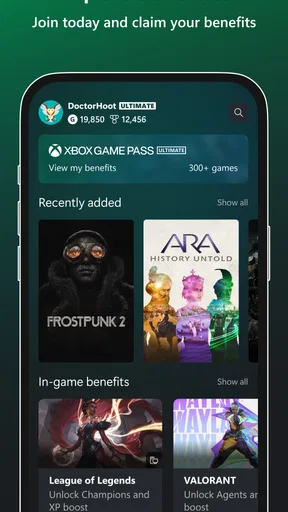
For Game Pass subscribers, the Xbox app provides easy access to a vast library of games. You can browse and download games directly to your console or PC. The app also offers recommendations, game trailers, and the latest news about upcoming releases and updates.
Is there a cost associated with using the Xbox app?
The Xbox app itself is free to download and use. However, some features, like Xbox Game Pass, require a subscription. Additional costs may apply if you make in-app purchases or subscribe to other Xbox services. Always check the latest subscription prices and offers.
